|
Tutorials A quickstart to add 123 Flash Chat room to your webpageThis is only a brief tutorial on inserting 123 Flash Chat into your webpage. (As to the advanced setting, please refer to User Manual.)
Step 3): Insert HTML code1. When you finish Step 2), you should navigate yourself to the url that you can login the admin panel (For example, http://yourdomain/client/admin_123flashchat.html). 2. Login the admin panel with your own account and then click the node named "Code Generator" at its left side, as the following picture shows.
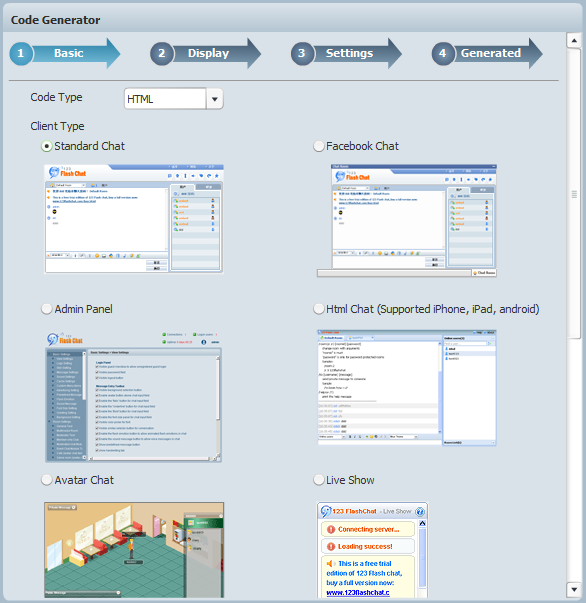
3. Click Basic -> Display -> Settings -> Generated in sequence, as the following picture shows.
4. Copy the code and then paste it to the proper position of your webpage Note:For advanced setting, please check User Manual. Please feel free to email support@123flashchat.com if you have any questions about integration or installation of 123 Flash Chat. We offer an installation service to 123 Flash Chat software buyers. Please attach your purchase email to identify yourself. Online support: http://www.123flashchat.com/support.html FAQ: http://www.123flashchat.com/faq.html Back to Home |

| |||||||
 |

 Move the "client" folder to a web server.
 Insert HTML code to webpage.