|
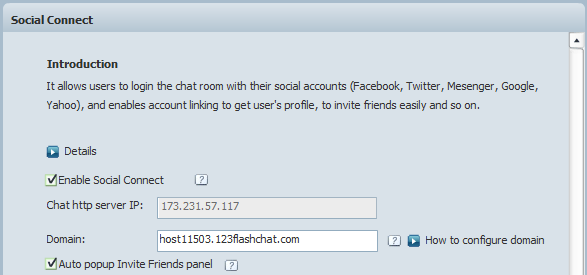
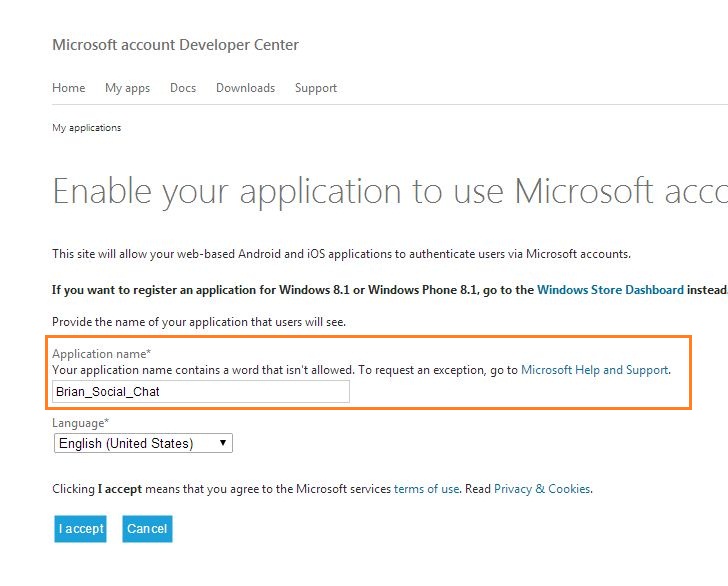
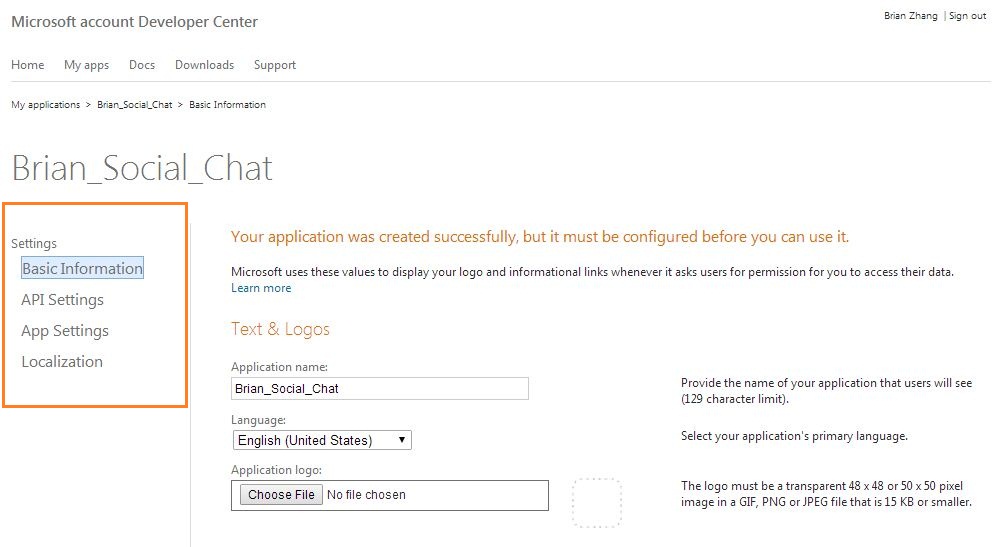
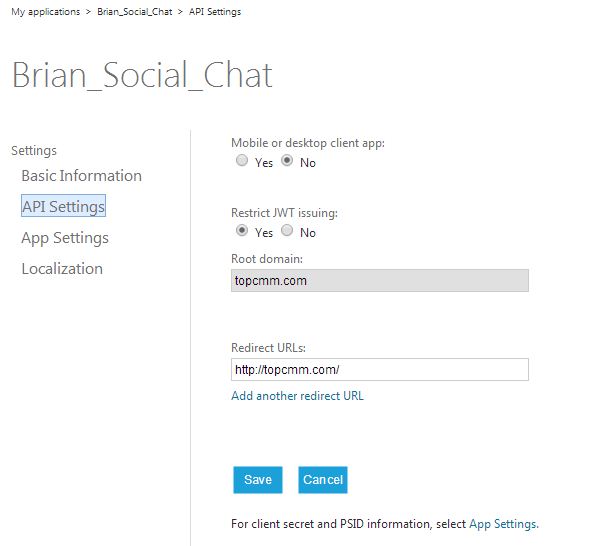
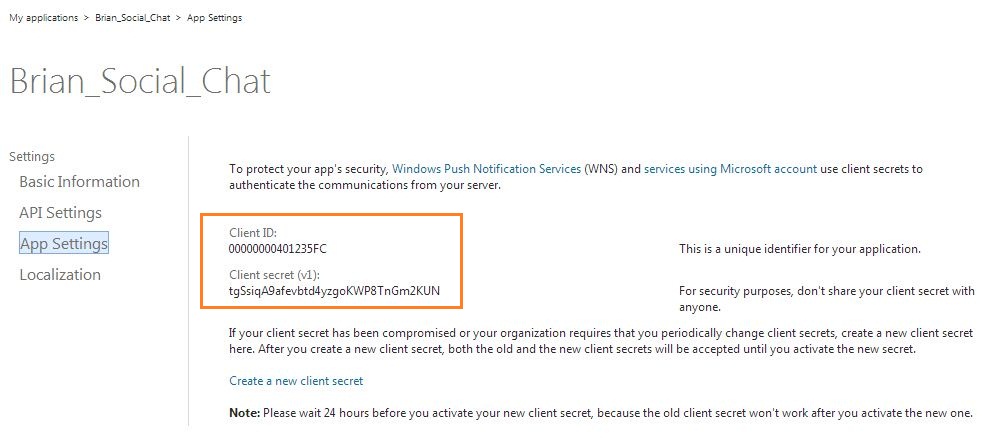
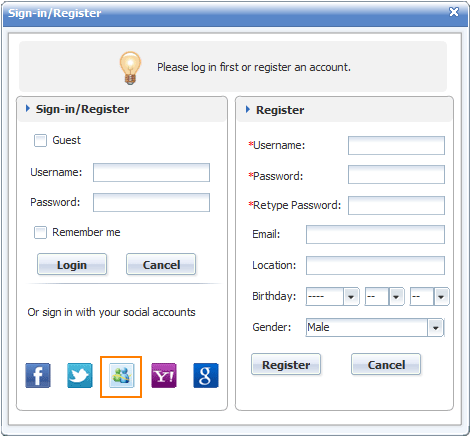
Features How to Enable Windows Live Messenger Connect in 123 Flash Chat?Please refer to the following instructions. Step 1. Enable Social Connect Login 123 Flash Chat admin panel -> Social Connect . Step 2. Get a Windows Live Messenger API1. Firstly please login your Windows Live Messenger account and visit this page: https://manage.dev.live.com/; If you don't have an account yet, please register one first. 2. Go to this page then to create your API: https://account.live.com/developers/applications/create?tou=1 3. Enter the "application name" that you need and click "I accept" to proceed. 4. You will be directed to the Developer Center to configure the settings. 5. Let's start with the "Basic Infomation" - Application name: The application name you just entered in last step, it will be antomatically shown there URLs Terms of service URL: make it this way: http://yoursite.com/tos.html Click "save". 6. Next, go to "API Settings" -Mobile or desktop client app: No IMPORTANT: The Root Domain and Redirect URL are paramount. And, click "save". 7. App Settings You should be able to get the Client ID and Client secret (v1) by clicking the "App Settings", please copy them. Step 3. Configure Windows Live in 123 Flash Chat 1. Go back to your chat admin panel -> Social Connect -> Messenger app, Restart the chat server. Step 4. Test Your ChatOpen your chat room, and a Windows Live Messenger login button will show on Sign-in/Register panel. Then click it to login with your Windows Live Messenger account. If you find any errors during the testing process, please double check the configuration above. We provide free configuration service to 123 Flash Chat buyers, you may choose from the two options below: 1. Provide a Windows Live Messenger account to us Any questions please send an email to support@123flashchat.com . |

| |||||||
 |