|
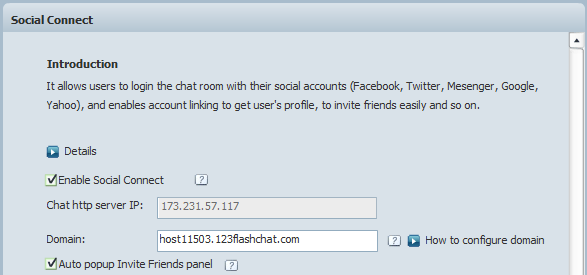
Features How to enable Google connect in 123 Flash Chat?Please refer to the following instructions. Step 1. Enable Social ConnectLogin 123 Flash Chat admin panel-> Social Connect.
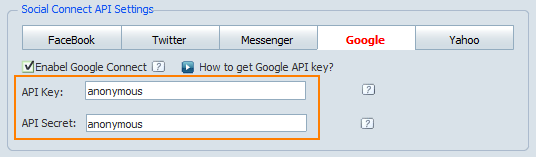
There are two ways to configure Google in 123 Flash Chat: Unverified Login Portal and Verified Login Portal. Step 2. Unverified Login Portal (Default)By default, you don't need to configure Google to access the portal, because Google provides some default values to access to login portal, which is the default settings of Google app in 123 Flash Chat. Login your chat admin panel-> Social Connect-> Google app,
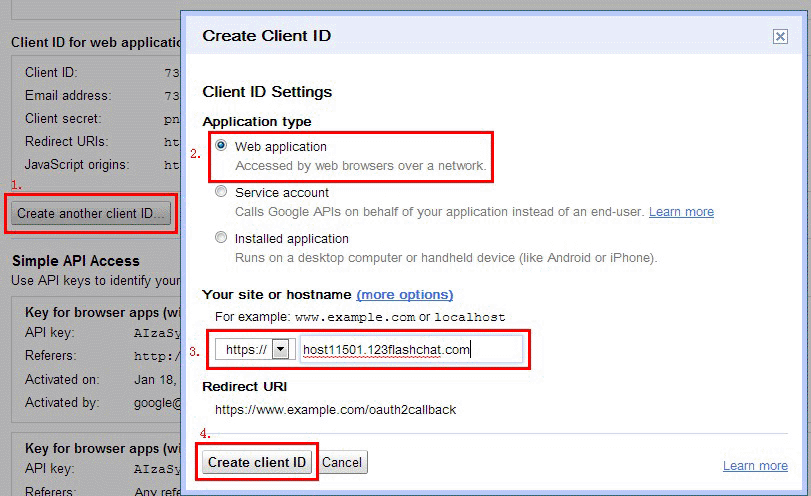
Restart the chat server. Step 3. Login Authenticated Portal1. Login your Google account here https://www.google.com/accounts/, if you don't have an account, please register one and login. 2. Visit https://code.google.com/apis/console/, click Create another client ID.... 2.1 After that Application type choose "Web application", edit Your site or hostname, input your website address, and click "Create Client ID".
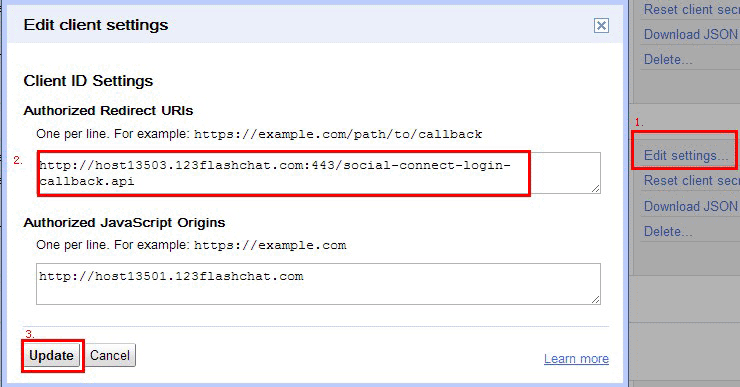
2.2 After that, click "Edit settings..." in Authorized Redirect URIs to verify your url, then click Update
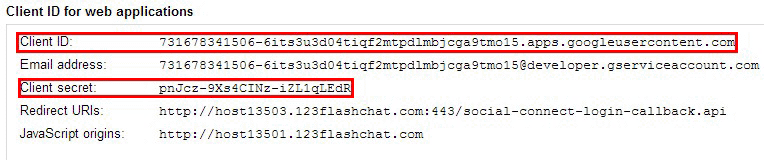
3. Configure Google in 123 Flash Chat 3.1 Back to your domain manage page, there are two values of Client ID and Client secret.
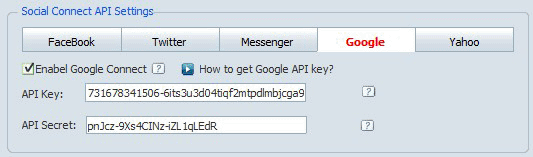
3.2 Login your chat admin panel-> Social Connect-> Google app,
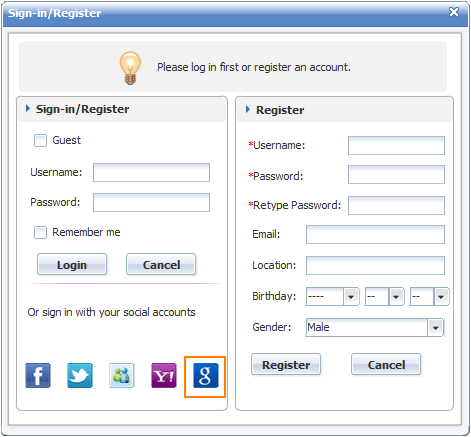
Restart the chat server. Step 4. Test Your ChatOpen your chat room, and a Google login button will show on Sign-in/Register panel. Then click it to login with your Google account.
If you find any errors during the testing process, please double check the configuration above. We provide free configuration service to 123 Flash Chat buyers, you may choose from the two options below: 1. Provide a Google account to us Any questions please send an email to support@123flashchat.gr. |

| |||||||
 |