|
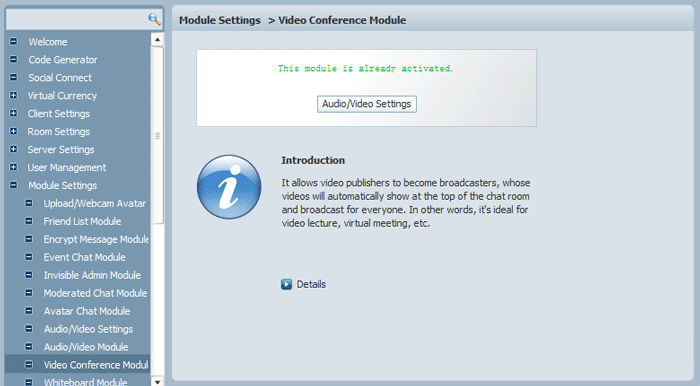
Features How to Enable Video Conference Module?By enabling the Video Conference Module, the video publishers become broadcasters, whose video window will automatically broadcast for everyone in the current chat room. Here is a brief tutorial for the admin to enable this module. Buy the Module FirstThe precondition is to buy the Video Conference Module first to activate it.
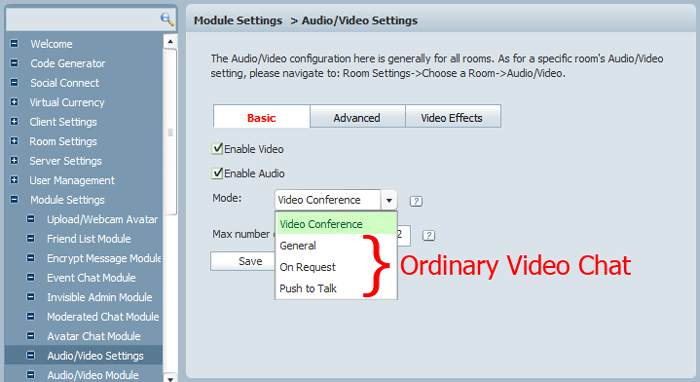
Enable Video Conference ModeAdmin Panel-> Module Settings-> Audio/Video Settings, (make sure that the video and audio are both enabled,) here is the place to switch between the two types of video chat: the conference mode and the ordinary video chat mode (Which are supported by two different modules). Video Conference Module
(Ordinary) Video Chat Module
Here choose Video Conference mode and set the max number (from 1 to 12) of videos for every room. It's a global control for all rooms.
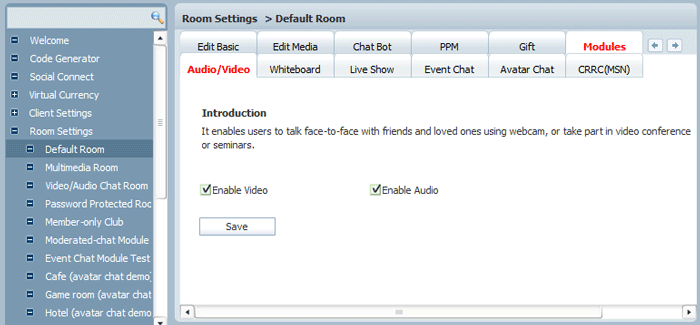
Turn On Video Conference Mode for a Specific RoomAdmin Panel-> Room Settings-> A specific chat room-> Modules->Audio/Video, Enable Video/Audio to turn it on.
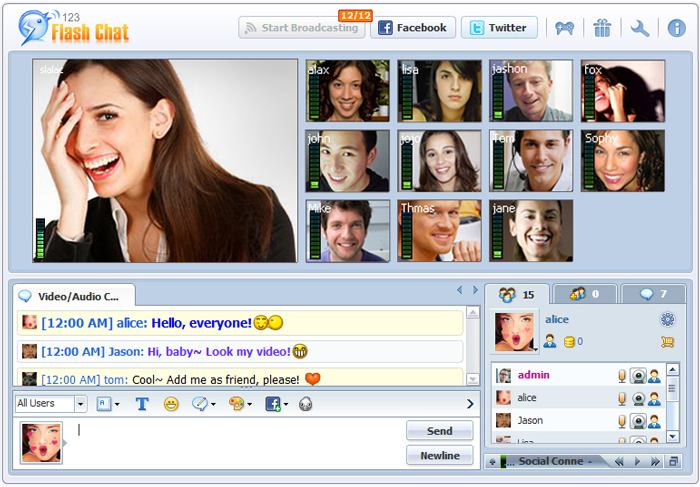
SuccessLogin the chat room, the "Start Broadcasting" is available at top, as well as the user published videos.
|

| |||||||||||||||
 |