To add a feature-rich chat room to your UseBB, please refer to the following instructions. Firstly, please download UseBB chat module, and uncompress the package. 
Then copy files.
1. Copy: 123flashchat.php
To: <UseBB installed directory>/123flashchat.php
2. Copy: login_chat.php
To: <UseBB installed directory>/login_chat.php
3. Copy: functions_chat.php
To: <UseBB installed directory>/functions_chat.php
4. Copy: folder flashconf/
To: <UseBB installed directory>/flashconf/
Secondly, edit files.
1. Open: <UseBB installed directory>/source/functions.php Find
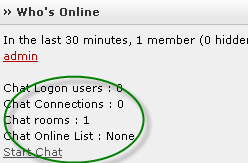
$users_online = $lang['MembersGuestsOnline']; After add require_once("functions_chat.php");
$room = getChatters();
$userlist = getChatterList();
$config = chat_config();
$chat_stats = "Chat Logon users : ".$room['logon_users']."<br>";
if($config['extend_chat_server'] != 3)
{
$chat_stats .= "Chat Connections :
".$room['connections']."<br>";
$chat_stats .= "Chat rooms :
".$room['room_numbers']."<br>";
}
$chat_stats .= "Chat Online List : ".$userlist."<br>";
$chat_stats .= "<a href='http://www.123flashchat.com'
onClick='openChat();return false;'>Start Chat</a>"; Find
'members_online' => ( count($memberlist) ) ? join(', ', $memberlist) : '', After Add 'chat_stats' => $chat_stats,
2. Open: <UseBB installed directory>/templates/default/global.tpl.php Find
<li><a href="{link_faq}">{l_FAQ}</a></li> After Add <li><a href="http://www.123flashchat.com" onClick="openChat();return false;">Chat</a></li> Find
<div id="topmenu-shadow"></div> Before Add <script language="Javascript" type="text/javascript">
function openChat()
{
window.open(\'123flashchat.php\', \'123flashchat\', \'height=560,resizable=yes,width=730\');
}
</script> 3. Open: <UseBB installed directory>/templates/default/various.tpl.php Find:
<td class="stats-cell"><div class="detailed-list-link">{detailed_list_link}</div>{users_online}<div>{members_online}</div> After Add: <br>{chat_stats}
Thirdly, configure UseBB chat module's running mode.
Please choose the running mode according to your need, and the configuration path is
<UseBB installed directory>/flashconf/config.php. Then configure the following parameters:
$running_mode Configuration reference:
$running_mode = 1; (only 1 or 2 or 3) 1. Chat server is hosted by your own ($running_mode = 1).
If your chat is hosted by your own, 123 Flash Chat server software should be installed at first, please download 123 Flash Chat.
Configuration path:
<UseBB installed directory>/flashconf/config_local.php Configure the following parameters:
$chat_group = "default";
$chat_data_path = "<123flashchat installed directory>/server/data/default/";
$chat_client_ path = "http://localhost/client";
$swf_name = "123flashchat.swf"; 2. Chat server is hosted by 123flashchat.com ($running_mode = 2).
If your chat is hosted by 123Flashchat.com, no 123FlashChat server software is needed to be installed; you may connect to your host chat room directly. Configuration path:
<UseBB installed directory>/flashconf/config_host.php Configure the following parameters:
$chat_client_root_path = "http://host*.123flashchat.com/hostname/";
$swf_name = "123flashchat.swf";
$chat_group = "default"; 3. Chat server is hosted by 123flashchat.com free of charge ($running_mode = 3).
If you prefer free hosting, then you don't have to install 123 Flash Chat server software, we take care the hosting and all you need to do is just pick a room name you want. 
Configuration path:
<UseBB installed directory>/flashconf/config_free.php Configure the following parameters:
$room_name = "YourRoomName"; (If you leave $room_name as blank, the default $room_name's value will be your domain's name.)
Fourthly, integrate your chat with UseBB user database, after doing that, users can auto-login your UseBB chat, it means they won't have to enter their accounts again. If you choose running mode (1) or mode (2), you need to set Auth-URL by following the instructions below. 1. Log in the Chat Admin Panel. 2. Server Settings -> Integration ->DataBase -> SELECT: URL -> edit. 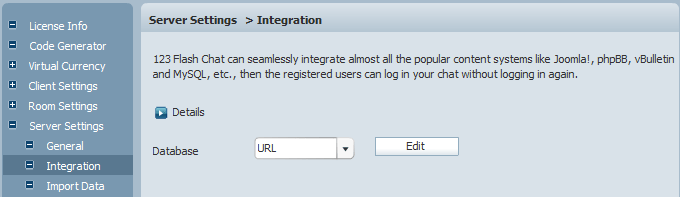
3. Change URL to
http://<UseBB installed directory>/login_chat.php?username=%username%&password=%password% 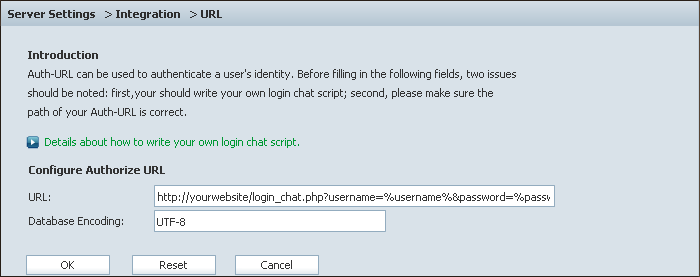
4. Press OK to save your setting. 5. Restart chat server at Server Management -> Restart. The following image describes how auth-URL integration works. 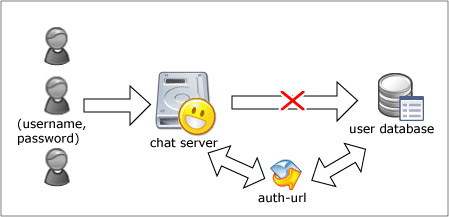
The Auth-URL application will perform as the communicating medium of the chat server and the database, i.e.: in fact, when a user logs on a chat server, the server won't connect to the user database directly, instead, it will send the username and password to the Auth- URL. Then the Auth- URL requests the database to authenticate the user. Finally, the Auth- URL will return the feedback to the chat server in a predefined way, whether approved or declined. Integration done, enjoy your chat. 
If you have any questions about chat room, please visit http://www.123flashchat.com/faq.html.
You can also send email to support@123flashchat.com, we offer free integration service for license buyer and yearly hosting buyer. | 





