How to use 123FlashChat on your Windows Live Spaces!
Step 1. Visit http://spaces.live.com/, you should login into spaces at first (please register an account if you don't have one).
Step 2. Log into space page and click View your spaces,enter into your space.Find Customize and select Add modules.
Step 3. Click Modules >> Other >> Find: Custom HTML >> Add >> Close tab >> Save
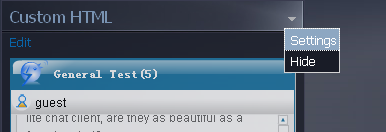
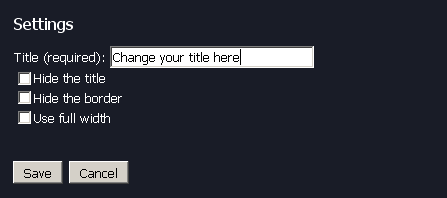
if you want to change the name of Custom HTML, so you should find the trigonal button and click it,Choose "Settings" before you Save it.
Step 4. Find the Custom HTML ,click Edit
Step 5. Fill with the following code in the content and Publish.
Back to your live spaces, you can find the 123flashchat is working!
Parameters Instruction:
SRC Parameters (the line of yellow color in the picture) init_host : this is your chat room's host address. init_port : this is your chat room's host port. init_host_s, init_port_s, init_host_h, init_port_h : there are chat room's reserved host address and host port ( there are not necessary parameters, you can not use it). init_group : this is your chat room group name init_user ,init_password : there are your logging account. init_room :default number of your enter room init_skin : this is the skin of your chat room . (you can set blue , red , black , green , yellow , purple)
EMBED Parameters ( the line of red color in the picture) HEIGHT : the height of your flash window. WIDTH : the width of your flash window.