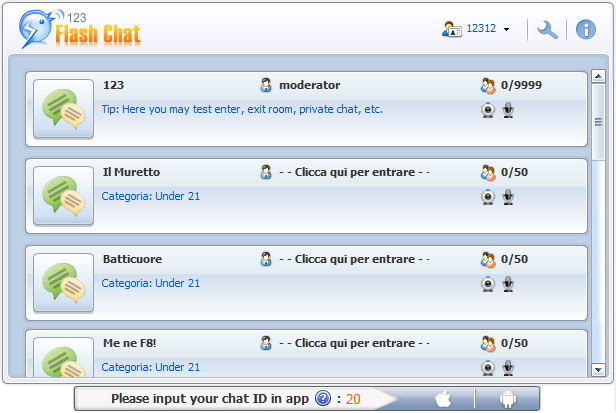
After you applied our Chat ID and download both mobile apps in Apple Store/Google Play. It’s time to encourage more users to login your chat room with their mobile devices.
 | iPhone/iPad/iTouch App | Android App |
 |  |
For 123 Flash Chat 9.6 or above version, there are two buttons at top to promote your mobile chat app in the chat room, which offers the app direct download links in Apple Store/Google Play and the Chat ID. You can upgrade your chat to the latest version by sending an email to support@123flashchat.com to request.

For chat version is lower than 123 Flash Chat 9.6, there is an easy way to add an ad at the bottom of the chat room with your Chat ID and mobile apps download link, which shows a convenient way for chat users to download mobile apps. Let’s promote your mobile chat in your chat room step by step!

Firstly, copy your own chat code as follows.
There are two chatid=1 in the following code, find and change them to chatid=<yourid>:
/* 123 FLASH CHAT CODE START */
<script>
document.write("<div id='appad' style='height:25px'>");
document.write("<object classid='clsid:D27CDB6E-AE6D-11cf-96B8-444553540000' codebase='http://download.macromedia.com/pub/shockwave/cabs/flash/swflash.cab#version=9,0,0,0' width='100%' height='100%' id='topcmm_appad'>");
document.write("<param name=movie value='http://www.123flashchat.com/banner/ad-app.swf?chatid=1'>");
document.write("<param name=quality value='high'>");
document.write("<param name='menu' value='false'>");
document.write("<param name='allowScriptAccess' value='always'>");
document.write("<embed src='http://www.123flashchat.com/banner/ad-app.swf?chatid=1' width='100%' height='100%' allowScriptAccess='always' quality=high menu=false type='application/x-shockwave-flash' pluginspage='http://www.macromedia.com/go/getflashplayer' scale='noscale' name='topcmm_appad' swliveconnect='true'></embed>");
document.write("</object>");
document.write("</div>");
</script>
/* 123 FLASH CHAT CODE END */
Eg: if your Chat ID is 20, so the code will be:
/* 123 FLASH CHAT CODE START */
<script>
document.write("<div id='appad' style='height:25px'>");
document.write("<object classid='clsid:D27CDB6E-AE6D-11cf-96B8-444553540000' codebase='http://download.macromedia.com/pub/shockwave/cabs/flash/swflash.cab#version=9,0,0,0' width='100%' height='100%' id='topcmm_appad'>");
document.write("<param name=movie value='http://www.123flashchat.com/banner/ad-app.swf?chatid=20'>");
document.write("<param name=quality value='high'>");
document.write("<param name='menu' value='false'>");
document.write("<param name='allowScriptAccess' value='always'>");
document.write("<embed src='http://www.123flashchat.com/banner/ad-app.swf?chatid=20' width='100%' height='100%' allowScriptAccess='always' quality=high menu=false type='application/x-shockwave-flash' pluginspage='http://www.macromedia.com/go/getflashplayer' scale='noscale' name='topcmm_appad' swliveconnect='true'></embed>");
document.write("</object>");
document.write("</div>");
</script>
/* 123 FLASH CHAT CODE END */
Secondly, paste the code to your ad setting in admin panel.
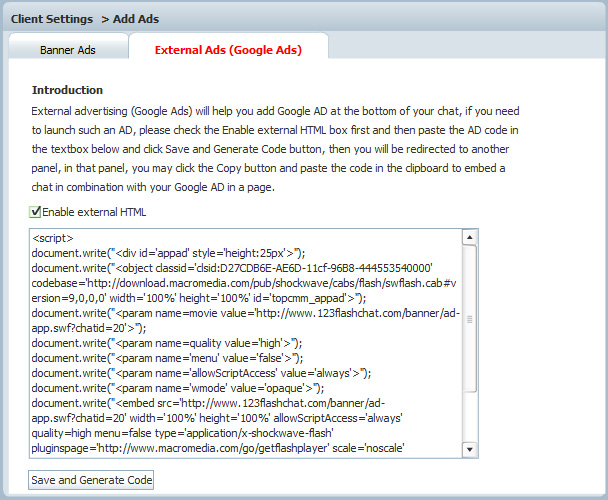
Copy the code replaced by your Chat ID as the above, login Admin Panel-> Client Settings-> Add ads-> External Ads(Google ads), paste the code and check “Enable external HTML”, then click “Save and Generate Code”.
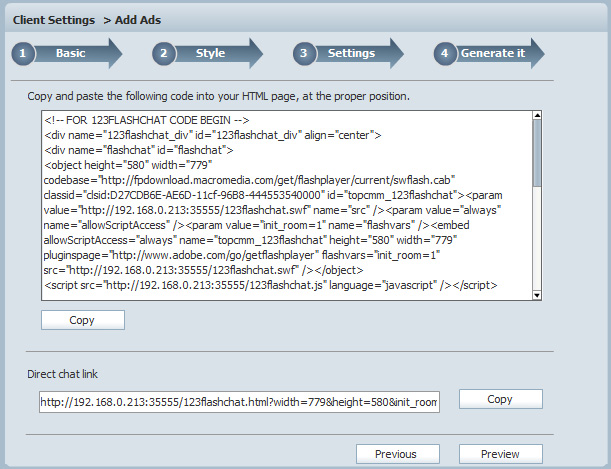
And it will jump to the code generated settings, please copy the new generated code to your page.
Lastly, check your chat room!
Then check your chat room, the ad will be listed at the bottom: Chat ID in app, iPhone app and Android app download links.
If you still can’t add the ad as the above, send an email to supprt@123flashchat.com, our support will help you fix it.